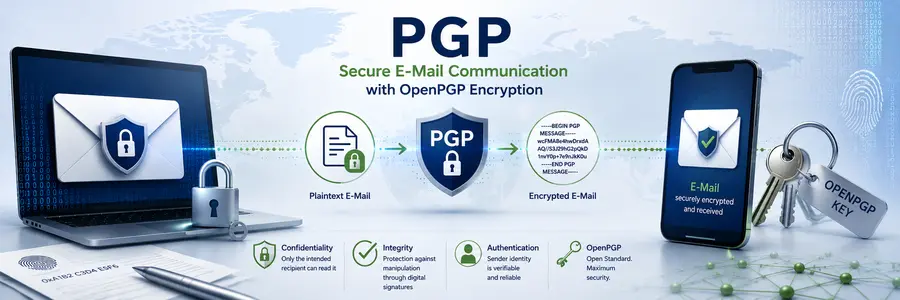
Encrypted Email Communication
For confidential information, you can encrypt emails to xwache using OpenPGP/GPG if you wish to send us security-related information or receive such information securely from us. Please note that emails without end-to-end encryption are not fully protected against access by the email providers involved. This is undesirable when communicating security-related information.
Follow our instructions below. We will also be happy to assist you with the setup if regular secure communication is required.
Our Public OpenPGP Key
Email address:
info@xwache.de
Fingerprint:
B984 F645 0CB5 0BF9 AB70 8D5F 73EC 1288 EEB8 8A2A
Public Key: Download OpenPGP key
Keyserver: Search for the public key on keys.openpgp.org
Important: Before using our key for the first time, verify its fingerprint. The fingerprint allows you to check whether you actually have the correct public key belonging to XWache.
How It Works
- Install an OpenPGP-compatible application (see instructions below).
- Import our public key.
- Verify the fingerprint.
- Encrypt your message using our public key.
- Send the encrypted message to
info@xwache.de.
Why Use OpenPGP for Secure Email Communication?
Emails are fundamentally different from traditional sealed letters and are more comparable to open postcards. Without end-to-end encryption, the contents of an email are generally readable on the systems involved and may, for example, be processed by the respective email provider.
Although communication between email applications and email servers, as well as between many email servers, is nowadays frequently protected by TLS, this transport encryption does not provide genuine end-to-end encryption between sender and recipient.
If you would like to send us confidential, personal or security-related information, you can therefore use OpenPGP.
With OpenPGP, the contents of your message are encrypted on your device using the recipient’s public key and can subsequently only be decrypted using the recipient’s corresponding private key.
Further information about the OpenPGP standard is available at openpgp.org.
How OpenPGP Works
OpenPGP uses a key pair:
- a public key, and
- a private key.
You may and should download our public key. You use this key to encrypt a message addressed to us.
The corresponding private key remains with us and is not published. It is required to decrypt the encrypted message.
In simplified form:
Your message → XWache Public Key → encrypted message → transmission by email → XWache Private Key → readable message
Digitally Signed Messages
OpenPGP can not only encrypt emails but also digitally sign them. A digital signature enables the recipient to verify whether the message was actually signed using the specified sender’s private key and whether the signed content has subsequently been modified.
A signed message is not automatically encrypted. It may therefore still be transmitted in readable form, but it provides additional verification of the origin and integrity of the message.
For confidential communication, we therefore recommend combining encryption with a digital signature.
Your message → digitally sign using your private key → encrypt using the XWache public key → transmit encrypted and signed email → decrypt using the XWache private key → verify signature using your public key → readable and verified message
To verify your signature, we require your public key. You can publish it on a public key server such as keys.openpgp.org or simply send it to us in a normal unencrypted email. For particularly confidential communication, please provide us with the corresponding fingerprint through an independent communication channel, for example by telephone or in person. This allows us to verify that the public key actually belongs to you.
Which Software Supports OpenPGP?
Support varies depending on the operating system and email application.
| System | Recommended Solution | OpenPGP Support | Rating |
|---|---|---|---|
| Windows | Thunderbird | integrated | ★★★★★ |
| Linux | Thunderbird | integrated | ★★★★★ |
| macOS | Thunderbird | integrated | ★★★★★ |
| Android | Thunderbird + OpenKeychain | via OpenKeychain | ★★★★☆ |
| iPhone / iPad | additional OpenPGP app required | not native in Apple Mail | ★★☆☆☆ |
| Apple Mail with S/MIME | Apple Mail | S/MIME instead of OpenPGP | ★★★★☆ |
Recommendation for Computers: Thunderbird
For Windows, Linux and macOS, we recommend Mozilla Thunderbird, a free and open-source solution.
Thunderbird supports OpenPGP directly. Since Thunderbird 78, OpenPGP support has been integrated into Thunderbird. An additional extension such as the previously used Enigmail is no longer required for normal OpenPGP use.
Further information is available in the Mozilla Thunderbird OpenPGP Guide.
1. Install Thunderbird
Download Mozilla Thunderbird, install the application and configure your email account.
2. Open the OpenPGP Settings
In Thunderbird, open:
Account Settings → End-to-End Encryption
Here you can manage your own OpenPGP keys.
3. Create Your Own Key
If you do not yet have your own OpenPGP key, you can create a new personal key pair in Thunderbird.
Thunderbird will generate:
- your public key, and
- your private key.
Keep your private key secure.
4. Download the XWache Public Key
Next, download the public XWache key provided on this page.
The file is named:
xwache-public-key.asc
5. Import the XWache Key
Import the downloaded public key into Thunderbird.
Then compare the displayed fingerprint with the fingerprint published on this website:
B984 F645 0CB5 0BF9 AB70 8D5F 73EC 1288 EEB8 8A2A
If both fingerprints match, you can use the key for communication with us.
6. Write an Encrypted Message
Create a new message addressed to:
info@xwache.de
Enable OpenPGP encryption in Thunderbird.
Thunderbird encrypts the contents of the message using our public key.
After the message has been sent, its contents can only be decrypted using our corresponding private key.
Android: Thunderbird + OpenKeychain
You can also use OpenPGP on Android.
Thunderbird for Android works with the external OpenKeychain application for OpenPGP.
You therefore need:
Setup
First install both applications.
Then open the following in Thunderbird for Android:
Menu → Settings → Email Account → End-to-End Encryption
Enable OpenPGP support.
Thunderbird will then use OpenKeychain as its cryptographic provider.
In OpenKeychain, you can create your own key or import an existing OpenPGP key.
Next, import our public XWache key and verify its fingerprint.
Once OpenKeychain knows the recipient’s appropriate public key, you can enable encryption when composing a message in Thunderbird.
Further information is available in the OpenPGP guide for Thunderbird on Android.
iPhone and iPad
The situation is different on iPhone and iPad.
Apple Mail does not natively support OpenPGP.
Instead, Apple supports S/MIME in its Mail application for encrypted and digitally signed emails.
If you specifically want to use OpenPGP/GPG, you therefore need an additional OpenPGP-compatible application on your iPhone or iPad.
The exact procedure depends on the application you use. However, the basic process is the same:
- Install an OpenPGP-compatible app.
- Create or import your own key.
- Import the public XWache key.
- Verify the fingerprint.
- Encrypt the message using our public key.
- Send the encrypted message to
info@xwache.de.
An overview of various OpenPGP applications is available at openpgp.org.
For users who regularly use encrypted email, OpenPGP support on a computer using Thunderbird is currently more convenient.
Alternative for Apple Users: S/MIME
Apple Mail supports S/MIME on iPhone and iPad.
S/MIME is also an established method for encrypting and digitally signing emails, but it uses certificates and a different trust model than OpenPGP.
Information about using S/MIME on Apple devices is available from Apple Support.
OpenPGP and S/MIME are therefore not the same:
OpenPGP → key-based end-to-end encryption
S/MIME → certificate-based end-to-end encryption
If you would like to use our OpenPGP key provided on this page, you will need an OpenPGP-compatible application.
What Does OpenPGP Protect?
With a correctly encrypted OpenPGP message, the following are protected in particular:
- the actual message text,
- confidential information contained in the message, and
- appropriately included encrypted attachments.
However, OpenPGP does not make an email completely invisible.
Certain metadata still has to be processed for email delivery. This may include the sender’s and recipient’s email addresses as well as other technical information.
The subject line should also not be assumed to be securely encrypted.
Therefore, do not include confidential information in the subject line.
For example, use:
Subject: Confidential Message
instead of:
Subject: Security Issue at Building 123 Example Street
Encryption and Signing Are Not the Same
OpenPGP can perform two different functions.
Encryption protects the confidentiality of the message. Only the intended recipient should be able to read its contents.
A digital signature makes it possible to verify whether a message was signed using a specific private key and whether its signed contents were subsequently modified.
A message can therefore be:
- encrypted only,
- digitally signed only, or
- encrypted and digitally signed.
For confidential communication, we generally recommend encryption with a digital signature.
If you use a signature, send us your public key unencrypted in a normal email or publish it, for example, via keys.openpgp.org.
For particularly confidential communication, we recommend additionally providing us with the corresponding fingerprint by telephone or in person.
Security of Your Private Key
Your private key requires special protection.
Never give your private key to another person and never publish it on a website or key server.
You should also create a secure backup copy of your key.
Your public key, on the other hand, may be shared. That is precisely what it is intended for.
Further basic information about OpenPGP is available at openpgp.org.
Always Verify the Fingerprint
Downloading a public key alone does not automatically prove that it actually belongs to XWache.
For particularly confidential communication, you should therefore verify the fingerprint. Our fingerprint is:
B984 F645 0CB5 0BF9 AB70 8D5F 73EC 1288 EEB8 8A2A
The fingerprint of the imported key must exactly match the fingerprint published here.
Questions About Encrypted Communication?
If you experience difficulties with the setup or would like to determine the appropriate communication method before transmitting particularly sensitive information, please contact us first using our regular contact methods.
X Wache GmbH
Email: info@xwache.de